

AvSight Self-Service Connection Guide
To connect your Avsight account with Rotabull, we will use an External Client App to connect to Avsight's API. The first step will be to create the External Client App within your Avsight account.
-
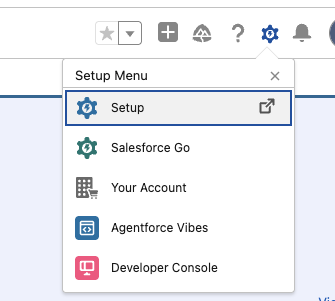
Login to Avsight and click "Set up" in the top-right:
-
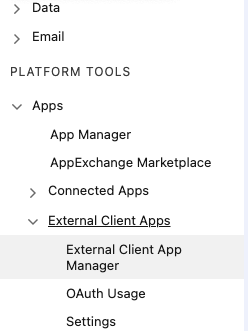
Access the External Client App Manager on the left (use the search bar to quickly find this section).
-
Once you're in the External Client App Manager, click New External Client App in the top right.

-
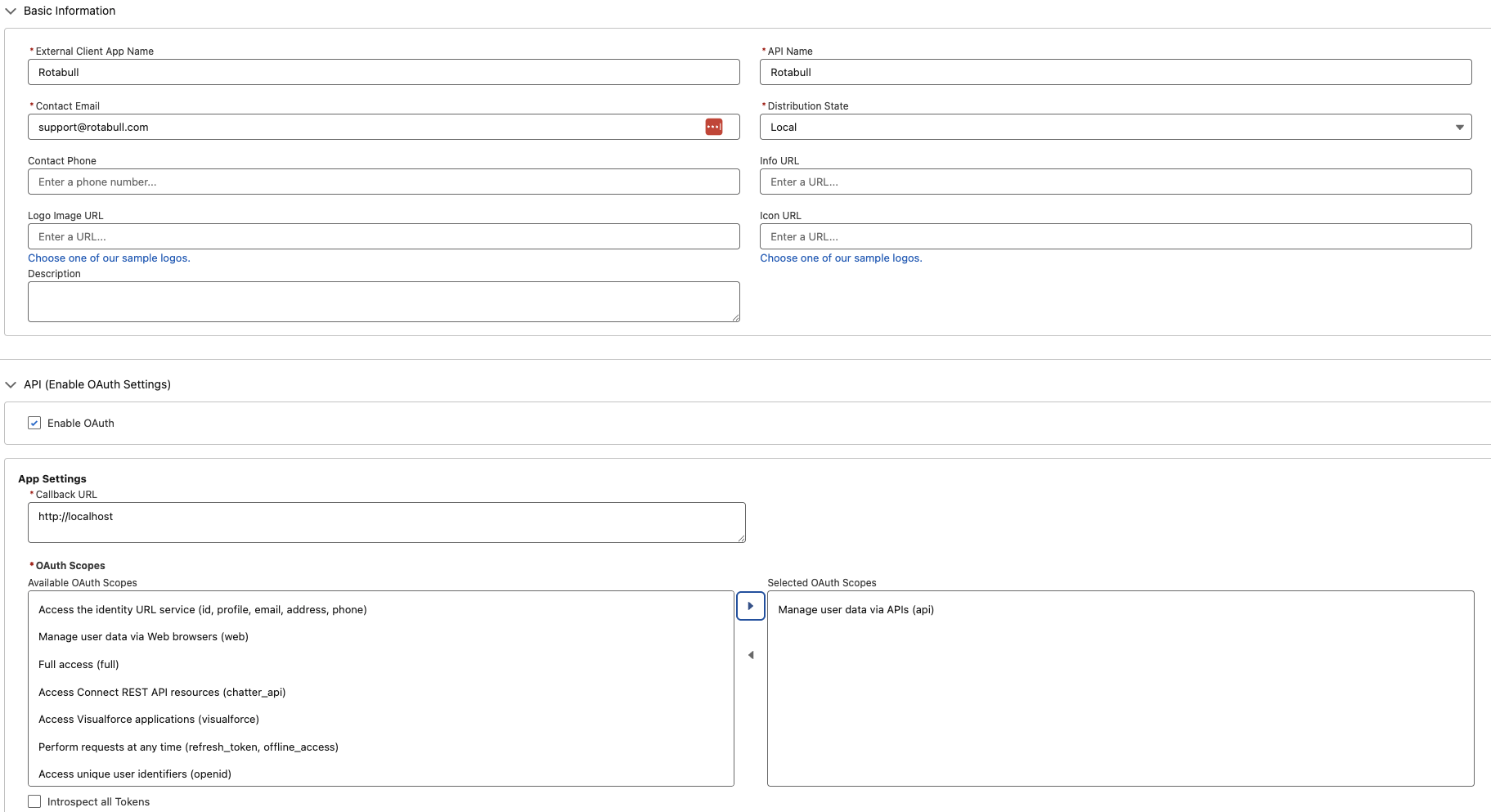
You can fill out the information for the app following the example below. Note that you'll need to check "Enable OAuth" and be sure to add "Manage user data via APIs (api) as the Selected OAuth Scope:
-
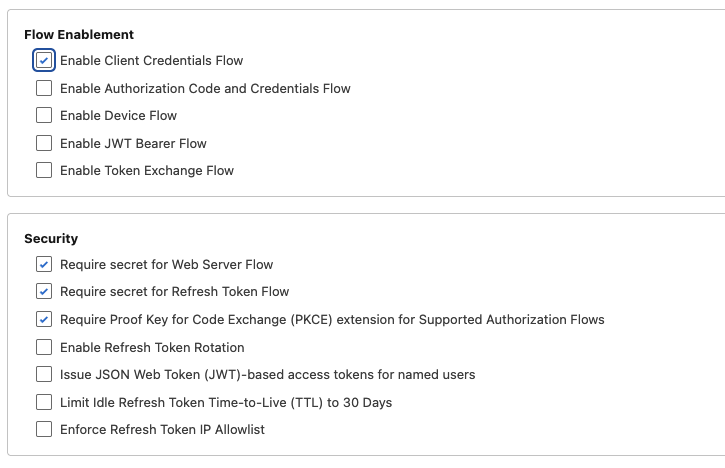
At the bottom of this page you'll also need to turn on the following Flow Enablement and Security options (some of these may already be checked by default).
-
Click "Create". Now go back to the External Client App Manager (from step 2) and you'll see the Rotabull app there. Click the app name to open it.
-
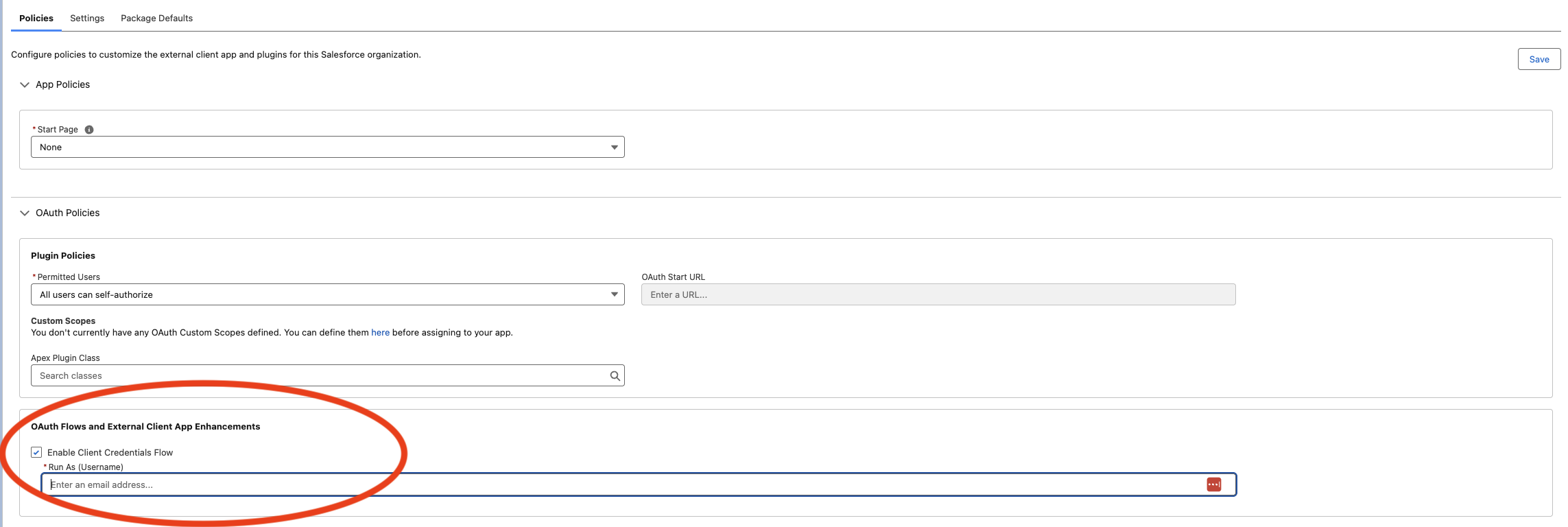
In the Policies section, we'll need to select an Avsight user that the Rotabull app will run under. Generally speaking, any existing user should be fine or you can create a specific one for Rotabull. In the OAuth Flows and External Client App Enhancements section, make sure "Enable Client Credentials Flow" is checked and enter the Avsight username (this will often be the email address) of the user you'd like the app to run as.
-
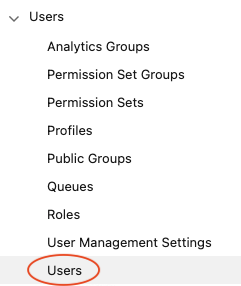
The "Run As" user will likely need to have some permissions added to complete the configuration of the app. On the left side bar, find the Users section and click Users (the search bar can help you quickly find this section).
-
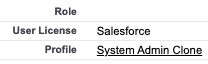
This will bring up a list of all the users you have in Avsight. Locate the user that you chose for the Rotabull app, then click on the associated profile on the right.
-
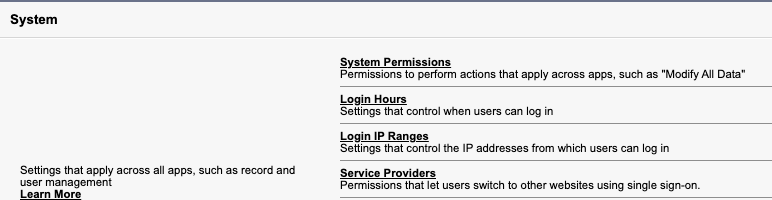
Scroll down to the System section and click on System Permissions.
-
This will open the list of all permissions that can be added to the profile. Locate the following permissions and ensure they are enabled (checked):
- View External Client App Consumer Secrets in Metadata
- Create, edit, and delete External Client Apps
- View all External Client Apps, view their settings, and edit their policies
-
Once you've enabled the above, scroll up to the top of the page and click Save.
-
NOTE: If you are logged into Avsight with a different user than the "Run As" user you selected earlier, you'll now want to login to AvSight with the Run As user.
-
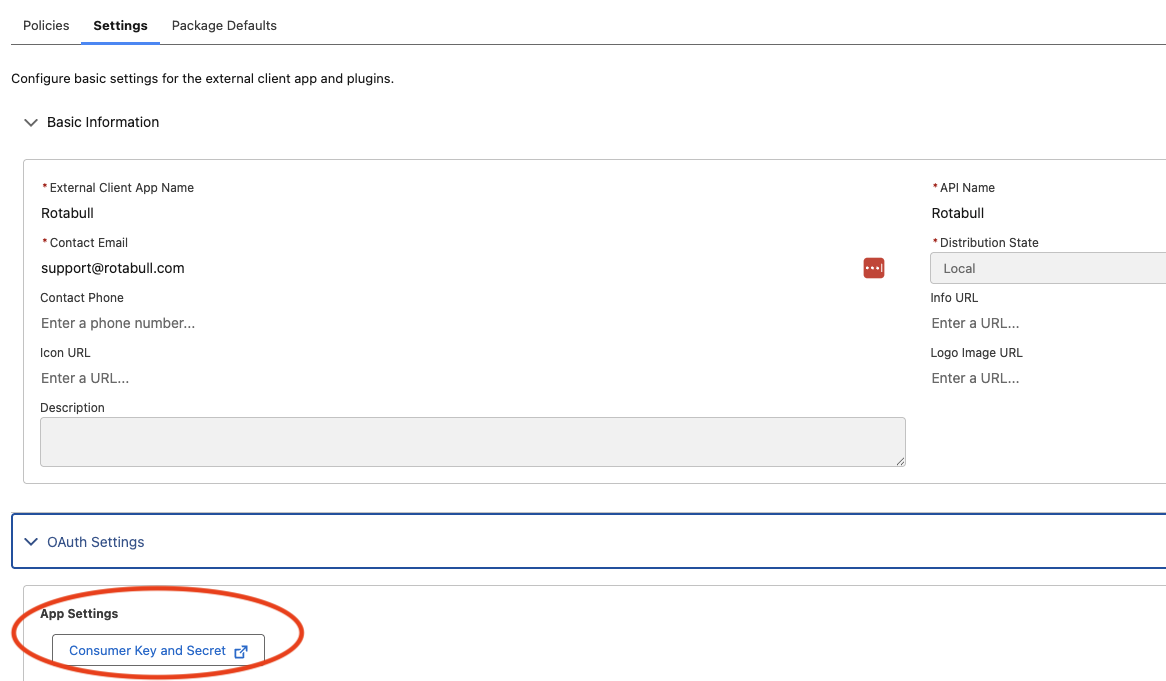
Go back to the External Client App Manager and open the Rotabull app. In the "Settings" section, click on "Consumer Key and Secret".
-
The next page will display the API credentials, which are two long strings of characters (Key and Secret). Copy and save these values as they will need to be added in the Rotabull settings.
-
To complete the connection, you'll need to add info to the Avsight settings in Rotabull. The settings can be found in the Integration Settings, click on the Avsight card at the top.
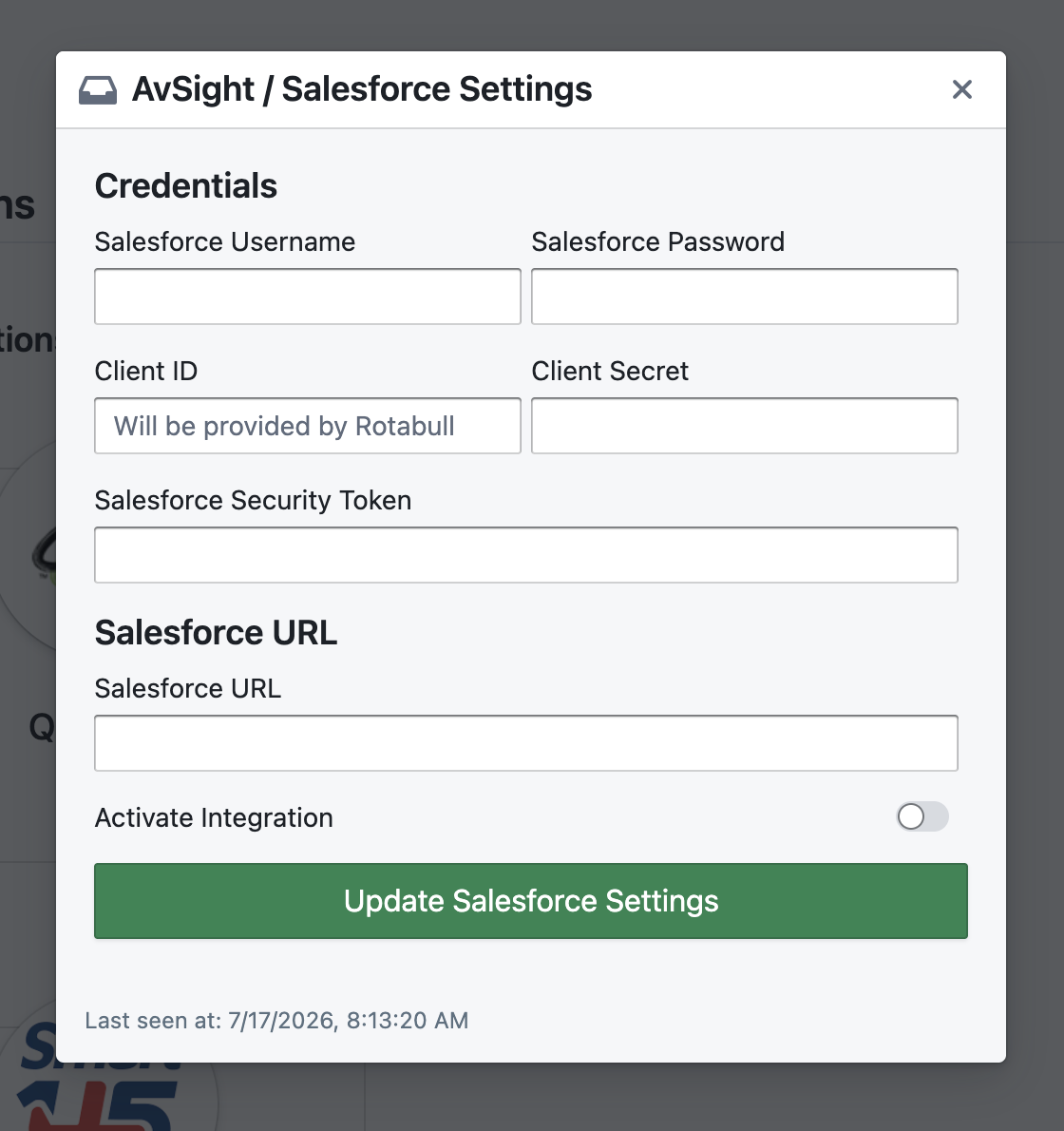
- Salesforce Username and Password: Enter the username and password the "Run As" user that was chosen during the process above
- Client ID and Client Secret: Enter both of the credentials that were copied from Avsight previously. Note that the "Key" string goes in the Client ID field.
- Salesforce URL: Enter the URL that you use to login to Avsight. It should be in this format: "https://prod-avs-myorganization.my.salesforce.com". If your URL contains extra URL parameters, you'll want to trim those off.
-
Finally, turn on the "Activate Integration" toggle and click the Green button at the bottom of the settings. This will activate the Avsight connection. You'll see the Avsight logo in the Integration Settings turn to "connected". At this point, the connection is up and running and Rotabull is ready to insert any quotes you send into your Avsight ERP
If you run into any issues during this process, please reach out to support@rotabull.
Updated 3 months ago