

Deals
A "Deal" represents a sale opportunity that will go through various stages (i.e. RFQ, Quote, SO, etc.) as the opportunity progresses. To view your deals in their current stages, click the Deals button at the top of your Rotabull screen.

General FlowThe deals section has six views, one for each stage of the sales process. Most deals will start with an RFQ, which you’ll find in the RFQ inbox. Once it’s been quoted, that deal will be moved to the Quote view. When you send an invoice on that deal, it will be moved to the Invoice view, and so on.
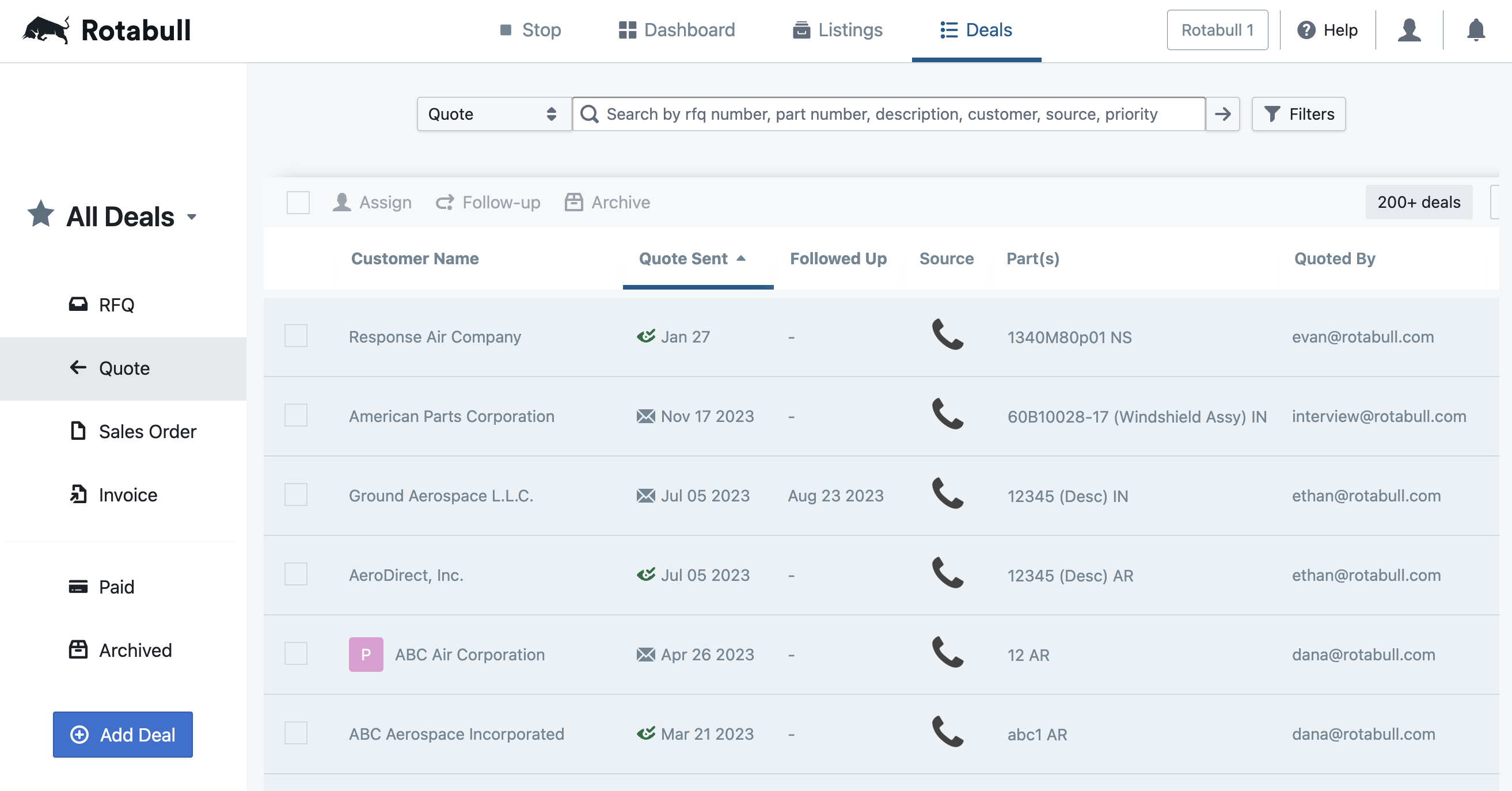
The six deal stages are: RFQ, Quote, Sales Order, Invoice, Paid, and Archived. You can view your deals in each stage by clicking the buttons on the left side.
Each view has the same general functionality, but there are different actions available depending on the deal stage you are in. For example, the RFQ Inbox has a “No Quote” button, whereas the Quote view has a “Follow-up” button. Here are the basics that apply to all deal stages:
Select Deals to View
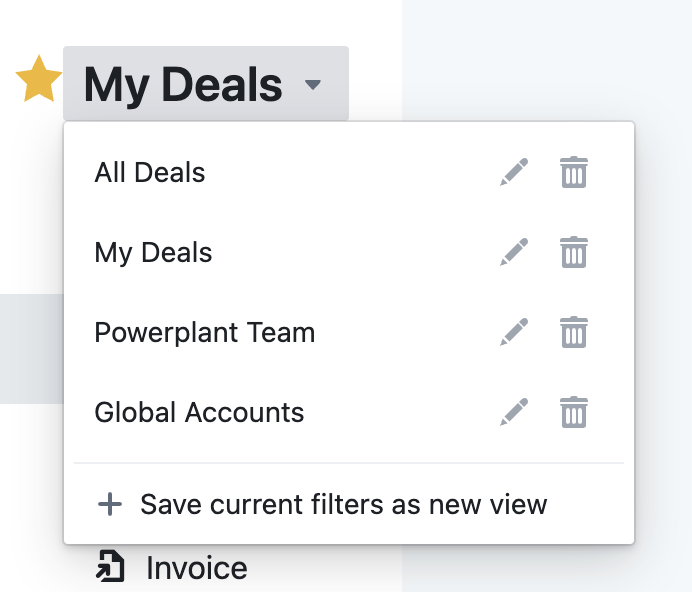
In the top-left of the Deals section, you can select which deals you want to view. All Deals will display every deal in your Rotabull account, whereas My Deals will display only the deals that are assigned to your user account. If you're a member of any teams in Rotabull, you'll also be able to select them here to view any deals assigned to that team. Lastly, if you have any active filters (added using the "Filters" button detailed in the Searching section below) you can save those filters to a new inbox view. You can then select that view in the future to add those filters all at once. Your selected view will apply to all inboxes in the deals section. Click the star to set the current view as your default.
Searching

You can search through each of the deal stage views using various terms such part number, description, source and more. Note that you can click the drop-down to the left of the search bar to apply the search to a different stage, or select “All Stages” to search deals in all stages.
The Filters button on the right is available for each deal stage and allows you to filter the deals you are viewing with a variety of options, such as Stock Status, Quote Sent By, Customer Rank and more. These filters will apply even as you switch deal stages. Combine filters with a text search to quickly find what you need.
Bulk Actions
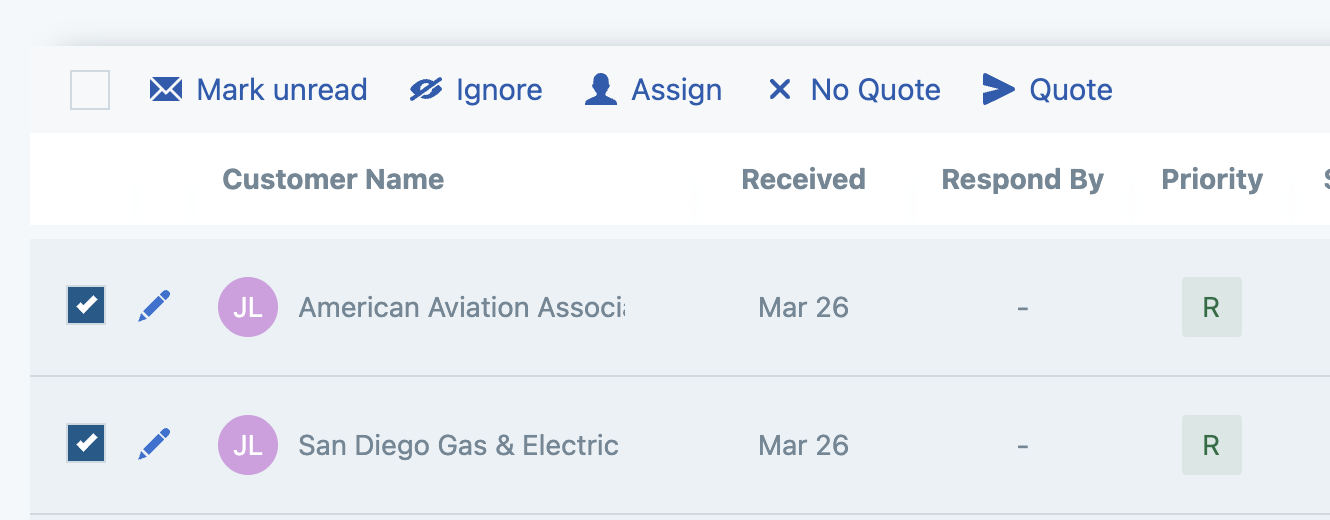
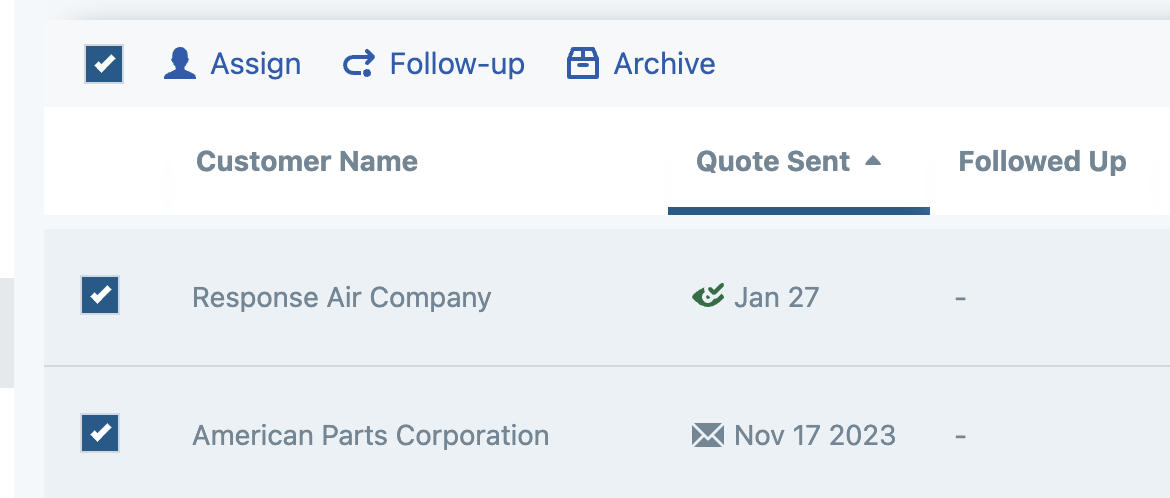
Finally, each deal stage allows you to select one or more deals and perform an action on all selected deals at one time. The cction buttons are at the top of the inbox. The first three actions are straightforward, you can mark deals as unread, ignore deals (which will move them to the Archived section), and Assign deals to a user or team.
No Quote
The No Quote bulk action button allows you to send a No Quote to all selected RFQs:
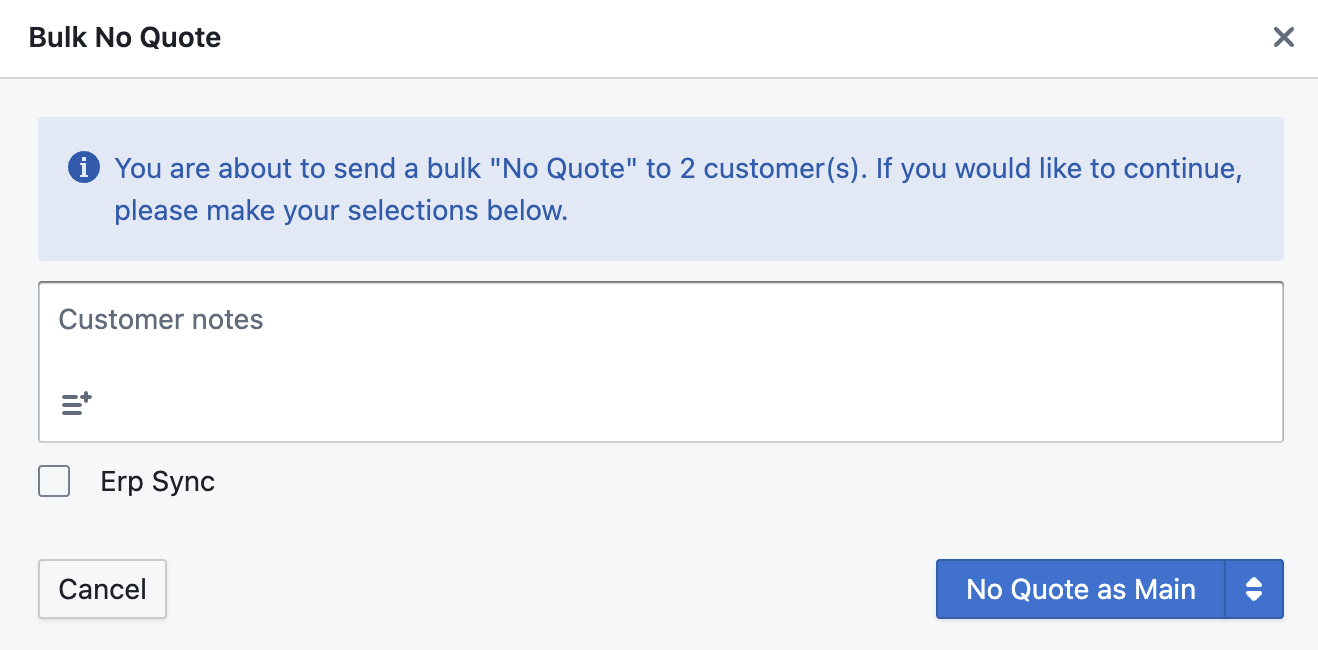
It will send a standard Rotabull No Quote. You can add a note, select whether or not this No Quote will be synced to your ERP, and you can also change which location is displayed on the No Quote email in the bottom right. To send it, click "No Quote as...".
Quote (Bulk Quote)
The "Quote" bulk action button allows you to send quote with a price (based on your price lines) or a Make Offer quote to all selected RFQs:
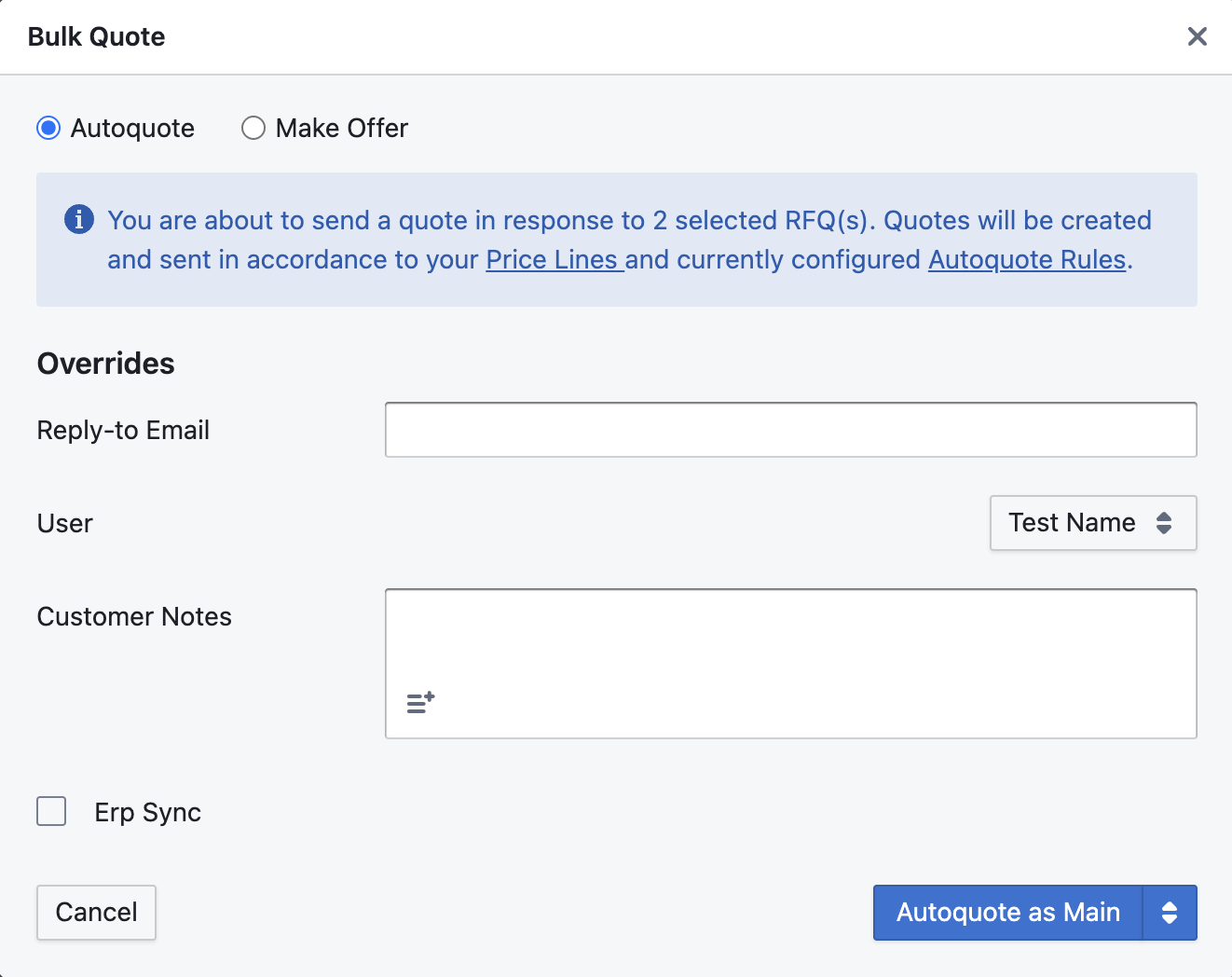
In order to send a quote with a price, the part number(s) you are quoting must be eligible for Autoquote- meaning you must have a price for it in your Price Lines and your Autoquote rule settings must allow for it to be quoted. Then just ensure you have Autoquote selected at the top and you can provide the Reply-to Email, choose a Rotabull user to send it from, and whether or not this quote will be synced to your ERP system. When you're ready, send the quotes by clicking "Autoquote as..." in the bottom right.
The Make Offer option is similar but does not have any requirements such as price lines, you can send a bulk Make Offer quote on any RFQs you receive in Rotabull.
The Deals section is where you will spend most of your time in Rotabull, particularly the RFQ inbox. Check out a more detailed summary of the RFQ Inbox.
Many actions that you take in the Deals section can be automated, check out Rotabull's automation rules.
Updated 6 months ago